클릭할 때 선 긋기
색상팔레트 정보 : http://www.flatuicolors.com
클릭할때 마다 랜덤 색상, 브러쉬 위치 이동

const canvas = document.querySelector("canvas");
const ctx = canvas.getContext("2d");
canvas.width= 800;
canvas.height= 800;

const color = [
    "#ff3838",
    "#ffb8b8",
    "#c56cf0",
    "#ff9f1a",
    "#fff200",
    "#32ff7e",
    "#7efff5",
]

function draw(event) {
    ctx.beginPath();
    ctx.moveTo(Math.floor(Math.random()*canvas.width),Math.round(Math.random()*canvas.height));
    ctx.lineTo(event.offsetX,event.offsetY);
    ctx.strokeStyle = color[ Math.round(Math.random()*color.length)];
    ctx.stroke();
}

canvas.addEventListener("click",draw);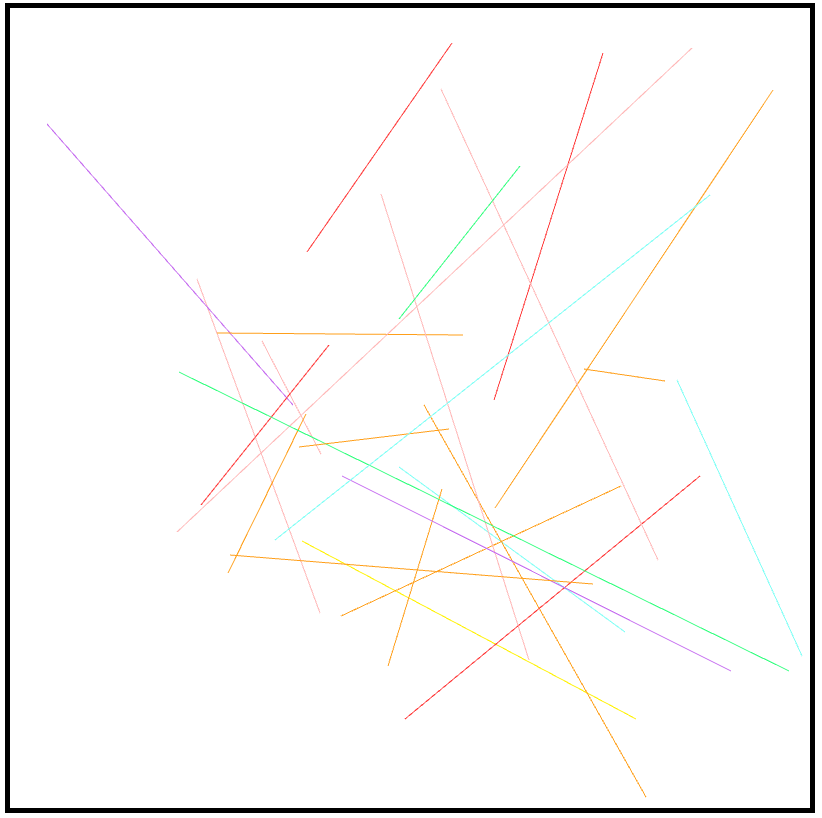
클릭한채 움직일 때 그리기
마우스가 움직일 때마다 그리는 시작점이라고 알려주기 위해 브러쉬 위치를 마우스 포인트 위치로 해줘야 한다. (mousemove 이벤트)
마우스가 클릭했을 때 선이 그려진다. 이때 이벤트 함수는 click이 아닌 mousedown 이다. click이벤트는 마우스를 눌렀다가 뗐을 때 발생하지만 mousedown은 버튼 누른상태를 의미한다.
| 1. 마우스가 움직일 때마다 브러쉬 위치를 지정한다. 2. 마우스가 눌려있을 때 그리기 시작한다. 3. 마우스가 떼지면 그리기를 멈춘다. *버그 : 마우스가 캔버스를 떠났다가 다시 들어오면 계속 그려진다. 계속 그려지는 걸로 인식 (캔버스에 마우스가 떠나면 그리기 중단) |
const canvas = document.querySelector("canvas");
const ctx = canvas.getContext("2d");
canvas.width = 800;
canvas.height = 800;
let isPainting = false;

function onMove(event) {

    if (isPainting) {
        ctx.lineTo(event.offsetX, event.offsetY);
        ctx.stroke();
        return;
    }
    ctx.moveTo(event.offsetX, event.offsetY);
}

function startPainting() {
    isPainting = true;
}
function canclePainting() {
    isPainting = false;
}

canvas.addEventListener("mousemove", onMove);
canvas.addEventListener("mousedown", startPainting);
canvas.addEventListener("mouseup", canclePainting);
canvas.addEventListener("mouseleave", canclePainting);
if문의 return, isPainting이 true일 경우 불필요한 moveTo함수를 실행되지 않게 하기 위함이다.
return하지 않으면 moveTo는 항상 실행된다.
반응형
'프론트엔드 > javascript' 카테고리의 다른 글
| javascript (16) - 캔버스 만들기 #4 (색채우기, 이미지업로드) (0) | 2023.05.04 |
|---|---|
| javascript (16) - 캔버스 만들기 #4 (선 두께,모양, 색상팔레트) (0) | 2023.05.02 |
| javascript (16) - 캔버스 만들기 #2 (canvas API) (0) | 2023.05.02 |
| javascript (16) - 캔버스 만들기 #1 (canvas API) (0) | 2023.05.02 |
| javascript(13) - Weather API (0) | 2023.04.17 |


