기능 추가하기
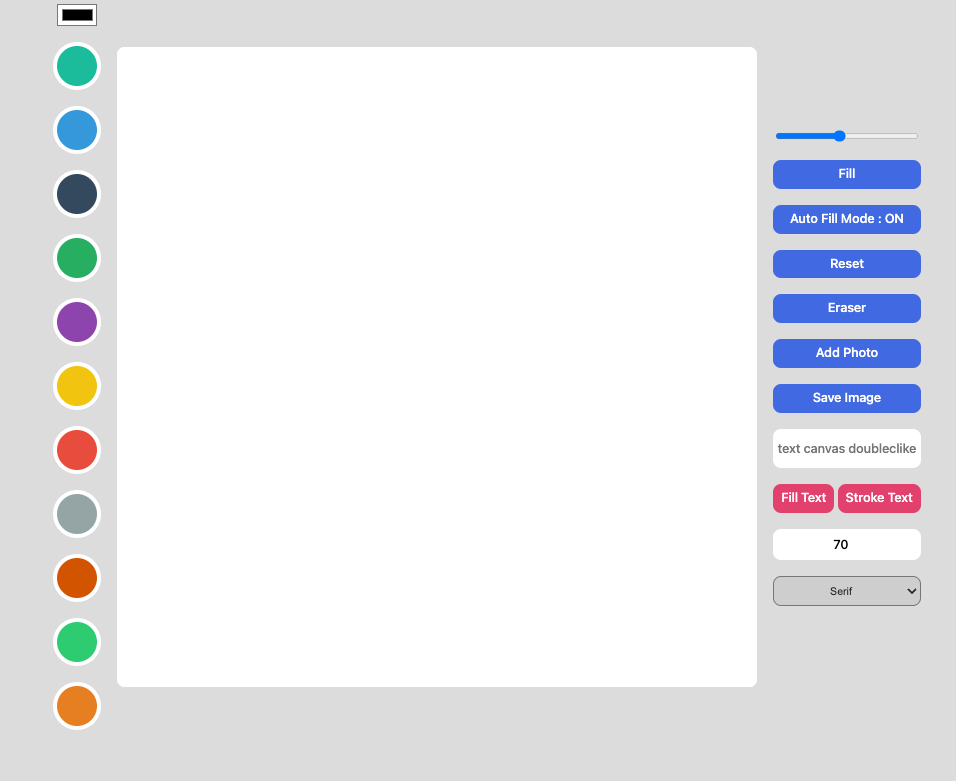
1. 선 그린후 자동으로 색채우기
2. 폰트 사이즈 조절
3. 폰트 스타일 조절 (fill, stroke)
4. 폰트 종류 2가지 추가
1. 선 그린 후 자동으로 필 채우기
mode on/off로 구현 -> mouseup 이벤트 후, mode on일 경우 ctx.fill();
2. 폰트 사이즈 조절
input 박스로 사이즈 수치 받아서 전달 휴 ctx.font 전달
3. 폰트 스타일 조절 (fill, stroke)
버튼 2개 생성 후, 스타일 클릭시 적용 // 모드 활용하여 구현
4. 폰트 종류 2가지 추가
버튼 변경 시 해당값 ctx.font로 전달
더보기
const AutoFill = document.getElementById("AutoFill");
const font_family = document.getElementById("font_family");
const font_size = document.getElementById("font_size");
const text_fill = document.getElementById("text_fill");
const text_stroke = document.getElementById("text_stroke");
const saveBtn = document.getElementById("saveBtn");
const textInput = document.getElementById("text");
const fileInput = document.getElementById("file");
const eraser = document.getElementById("eraser");
const mode_reset = document.getElementById("mode_reset");
const mode_fill = document.getElementById("mode_fill");
const line_Widh = document.getElementById("line_Widh");
const line_Color = document.getElementById("line_Color");
const color_options = Array.from(document.getElementsByClassName("color-option"));
const canvas = document.querySelector("canvas");
const ctx = canvas.getContext("2d");

canvas.width = 800;
canvas.height = 800
ctx.lineWidth = line_Widh.value;
ctx.lineCap = "round";
let fontSize = font_size.value;
let isPainting = false;
let isFilling = false;
let textFilling = true;
let isAutoFillmode = false;
let selectFont = "serif";

function onRest(event) {
    ctx.fillStyle = "white";
    ctx.fillRect(0, 0, 800, 800);
    textInput.value = "";
    ctx.fillStyle = "black";
    ctx.strokeStyle = "black";
    line_Color.value = "#000000";
    isFilling = false;
    mode_fill.innerText = `Fill`
    line_Widh.value = "5";
    ctx.lineWidth = "5";
    font_size.value = "70";
    fontSize = "70";
    isAutoFillmode = false;
    AutoFill.innerText = "Auto Fill Mode : ON"
    selectFont = "serif";
    font_family.value = "serif";
}

function onMove(event) {

    if (isPainting) {
        ctx.lineTo(event.offsetX, event.offsetY);
        ctx.stroke();
        return;
    }
    ctx.beginPath();
    ctx.moveTo(event.offsetX, event.offsetY);
}

function startPainting() {
    isPainting = true;
}

function canclePainting() {
    isPainting = false;
    if(isAutoFillmode!==true){
        return;
    } else {  ctx.fill(); }

}


function changeLineWidth(event) {
    ctx.lineWidth = event.target.value;
}


// function changeLineColor(event) {
//     ctx.strokeStyle=event.target.value;
//     ctx.fillStyle=event.target.value;
// }
// function onColorClick(event) {
//     // console.dir(event.target);
//     // console.dir(event.target.dataset.color);
//     const colorValue = event.target.dataset.color;
//     ctx.strokeStyle=colorValue;
//     ctx.fillStyle=colorValue;
//     line_Color.value=colorValue;
// }

function changeColor(event) {
    const dataSetColor = event.target.dataset.color;
    const colorValue = event.target.value
        ctx.fillStyle = colorValue;
        if (dataSetColor === undefined) {
            ctx.strokeStyle = colorValue;
            ctx.fillStyle = colorValue;
        } else {
            ctx.strokeStyle = dataSetColor;
            ctx.fillStyle = dataSetColor;
            line_Color.value = dataSetColor;
        }
    }


function onMode() {
    if (isFilling) {
        isFilling = false;
        mode_fill.innerText = `Fill`
    } else {
        isFilling = true;
        mode_fill.innerText = `Draw`
    }
}
function onFillColor() {
    if (isFilling) {
        ctx.fillRect(0, 0, 800, 800);
    }
}
function onEraser() {
    ctx.strokeStyle = "white";
    isFilling = false;
    mode_fill.innerText = `Fill`
}

function onFile(event) {
    const file = event.target.files[0];
    const url = URL.createObjectURL(file);
    const image = new Image();
    image.src = url;
    image.onload = function () {
        ctx.drawImage(image, 0, 0, 800, 800);
        fileInput.value = null;
    }
}


function onText(event) {
    const text = textInput.value;
    if (text !== null) {
        ctx.save();
        ctx.lineWidth = 1;
        ctx.font = `${fontSize}px ${selectFont}`;

        if (textFilling === true) {
            ctx.fillText(text, event.offsetX, event.offsetY);
        } else {
            ctx.strokeText(text, event.offsetX, event.offsetY);
        }
        ctx.restore();
    }
}
function onSave() {
    const url = canvas.toDataURL();
    const a = document.createElement("a");
    a.href = url;
    a.download = "myDrawing.png";
    a.click();
}

function onTextFill() {
    textFilling = true;

}
function onTextStroke() {
    textFilling = false;
}

function onFontSize() {
    fontSize = font_size.value;
}

function onAutoFill() {
    if (isAutoFillmode) {
        isAutoFillmode = false;
        AutoFill.innerText = "Auto Fill Mode : ON"
    } else {
        isAutoFillmode = true;
        AutoFill.innerText = "Auto Fill Mode : OFF"
    }
}

function onChangeFont(event) {
    selectFont = event.target.value;
}

canvas.addEventListener("mousemove", onMove);
canvas.addEventListener("mousedown", startPainting);
canvas.addEventListener("mouseup", canclePainting);
canvas.addEventListener("mouseleave", canclePainting);
line_Widh.addEventListener("change", changeLineWidth);

line_Color.addEventListener("change", changeColor);
color_options.forEach(color => color.addEventListener("click", changeColor));
mode_fill.addEventListener("click", onMode);
canvas.addEventListener("click", onFillColor);
mode_reset.addEventListener("click", onRest);
eraser.addEventListener("click", onEraser);
fileInput.addEventListener("change", onFile);
canvas.addEventListener("dblclick", onText);
saveBtn.addEventListener("click", onSave);

text_fill.addEventListener("click", onTextFill);
text_stroke.addEventListener("click", onTextStroke);
font_size.addEventListener("change", onFontSize);
AutoFill.addEventListener("click", onAutoFill);
font_family.addEventListener("change", onChangeFont);
기능 추가 예정 및 css 변경
1. css 변경하기
2. 폰트 버튼 생성 후 클릭시 조절할 내용 나오기
3. 폰트 종류 추가 해보기
4. 사용자 지정색깔 추가
반응형
'프론트엔드 > javascript' 카테고리의 다른 글
| 배열을 문자열로, 문자열을 배열로 바꾸기 (0) | 2025.09.16 |
|---|---|
| javascript (16) - 캔버스 만들기 #5 (CSS적용) (0) | 2023.05.04 |
| javascript (16) - 캔버스 만들기 #4 (TEXT, SAVE ) (0) | 2023.05.04 |
| javascript (16) - 캔버스 만들기 #4 (색채우기, 이미지업로드) (0) | 2023.05.04 |
| javascript (16) - 캔버스 만들기 #4 (선 두께,모양, 색상팔레트) (0) | 2023.05.02 |


